
Install and register Acronis Cyber Protect Cloud on Windows
This guide explains how to download, install, and register the Acronis Cyber Protect Cloud agent on a Windows device, using the credentials provided by Utixo and registration via code.
This procedure allows you to add the device to the Acronis console and make it available for applying protection services, such as antivirus, anti-malware, and backup, according to the selected plan.
Access the Acronis console
Open your browser and go to the Acronis portal:
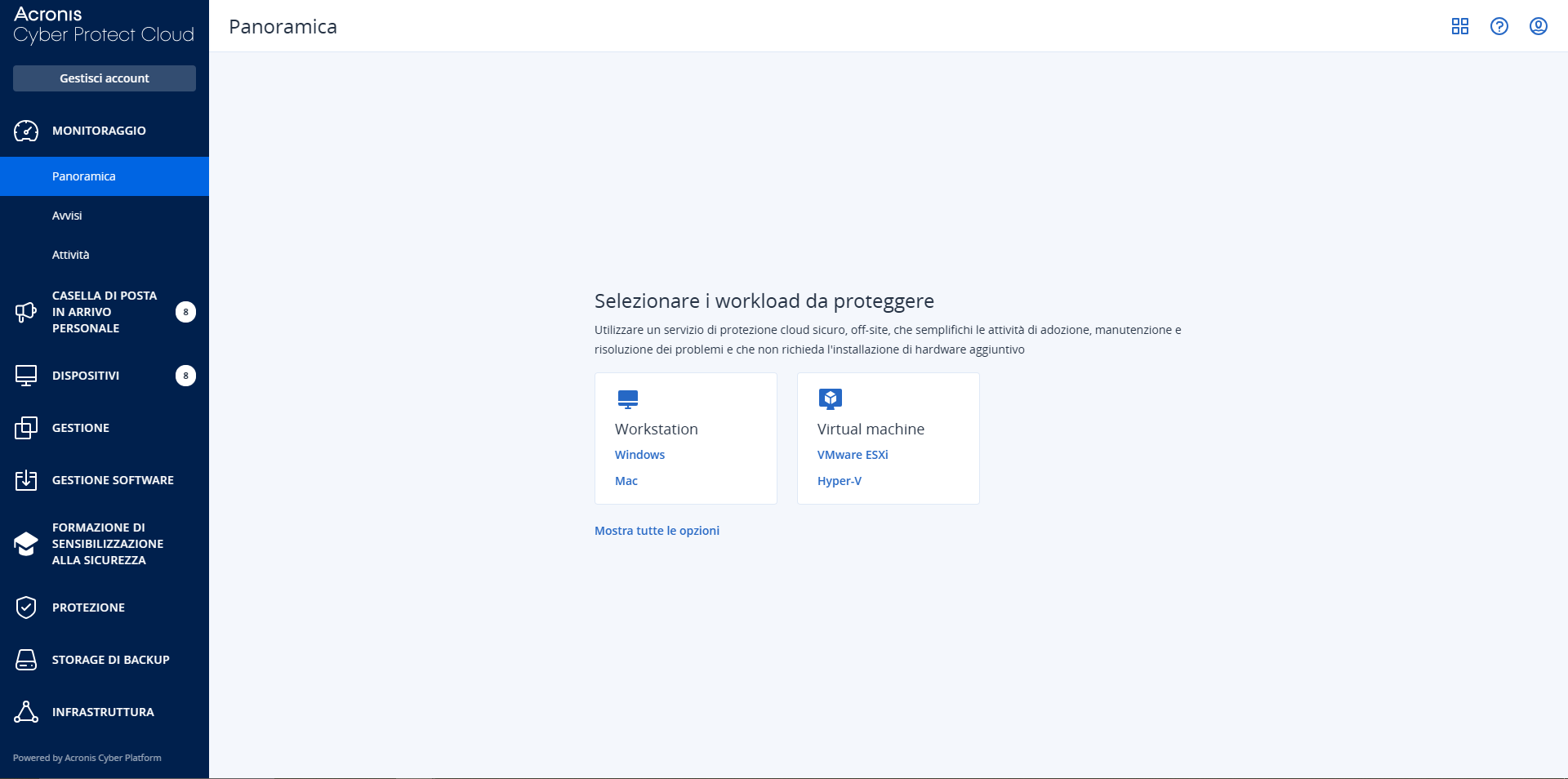
Log in using the credentials provided by Utixo. After logging in, the main console screen is displayed, where you can select the workload to protect.
Download the agent for Windows
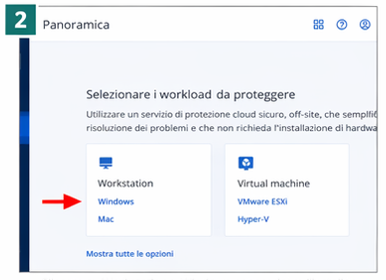
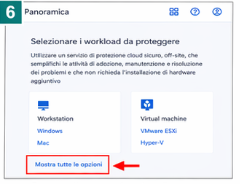
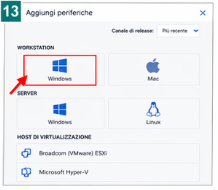
On the Select the workloads to protect screen, locate the Workstation box and click Windows.
The download of the Acronis agent installation executable will start automatically on the computer.
Install the Acronis agent on the computer
Once the download is complete, open the folder where the installation file was saved and run it as administrator.
In the Acronis Cyber Protect Cloud installation window, click Install and wait for the procedure to complete.
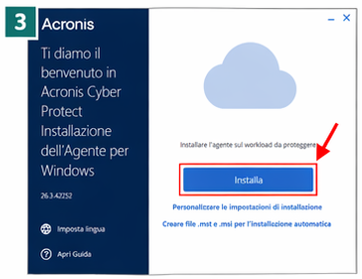
During installation, the system may take a few minutes. Do not close the window until the procedure is complete.
Attention
The executable must be launched with administrator privileges. Otherwise, the installation may not complete correctly or the device may not be registered in the Acronis console.
View and copy the registration code
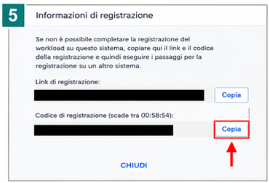
Once the installation is complete, click Show registration information.
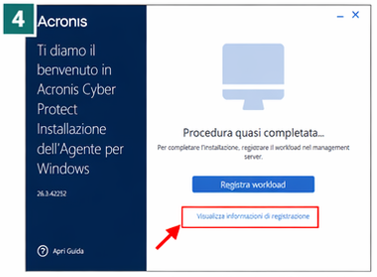
A window will display the registration link and the registration code. Copy the code, as it will be required to complete the device registration in the Acronis console.
Register the workload using the code
Return to the Acronis console opened in the browser and click Show all options.
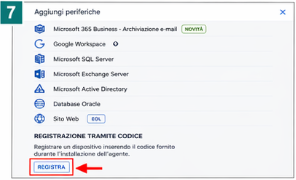
Scroll down to the Registration via code section, then click Register.
On the Register workload screen, paste the previously copied code into the Registration code field. Make sure the selected account is correct, then click Validate code.
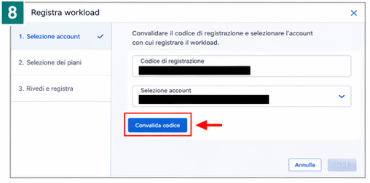
After the code has been validated, click Next to continue.
Do not apply a protection plan immediately
On the next screen, a default protection plan is proposed. To complete only the device registration, without immediately applying a plan, click Edit.
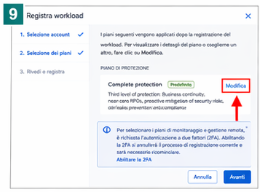
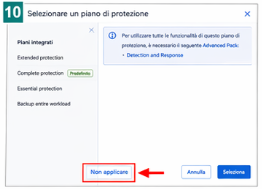
Within the protection plan selection, click Do not apply at the bottom left, then confirm your choice.
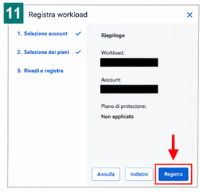
Return to the wizard, click Next, and then click Register to complete the device onboarding.
Verify that the device appears in the console
Once registration is complete, the device is displayed in the All devices section of the Acronis console.
On this screen, you can verify the computer name, protection status, associated account, and information related to backups and access.
Repeat the same procedure for all Windows devices on which you want to install and register Acronis Cyber Protect Cloud.
Download the installer again for other devices
After registering the first device, to download the installer again you need to access the All devices section and click Add at the top right.
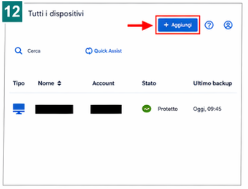
In the Add devices window, select the type of device to protect. For a Windows computer, click Windows in the Workstation or Server section, depending on the specific case.
The installer download will start automatically.
Completing the procedure
The configuration is complete when the device appears in the Acronis console. From this moment, you can manage the workload, apply a protection plan, and monitor the status of the available services.
To add other devices, repeat the download, installation, and registration via code procedure.