
How to Register Two-Factor Authentication (2FA) on Microsoft 365
1. Install the Microsoft Authenticator App
First, download and install the Microsoft Authenticator app on your smartphone. It is freely available on both the Google Play Store and Apple App Store.
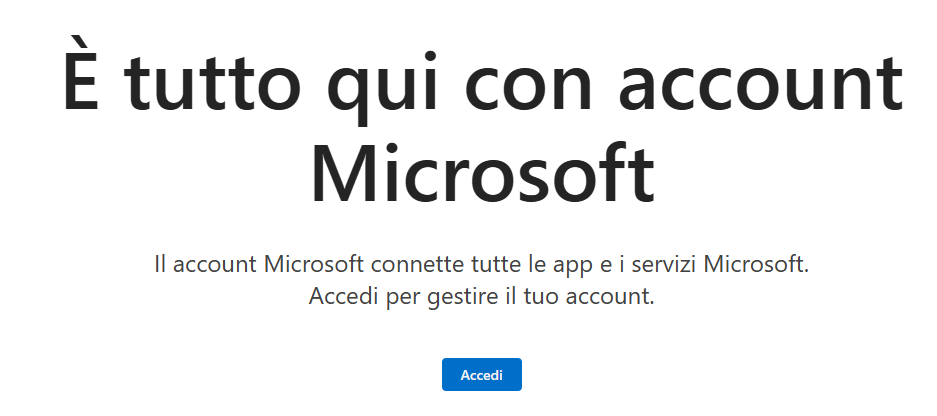
2. Sign in to your Microsoft Account
Open your browser and go to https://account.microsoft.com/account, then log in using your Microsoft 365 account credentials.
3. Go to the “Account Security” section
Once logged in, navigate to the Account Security section and click Next to start setting up two-step verification.
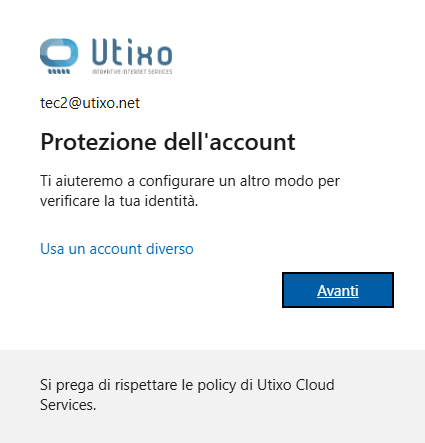
4. Configure Microsoft Authenticator
When prompted, click Next.
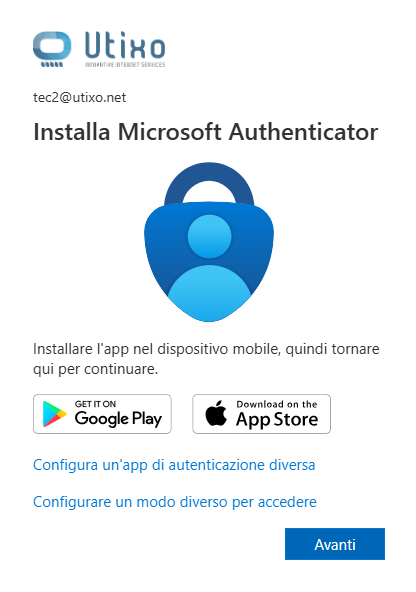
5. Proceed with the setup
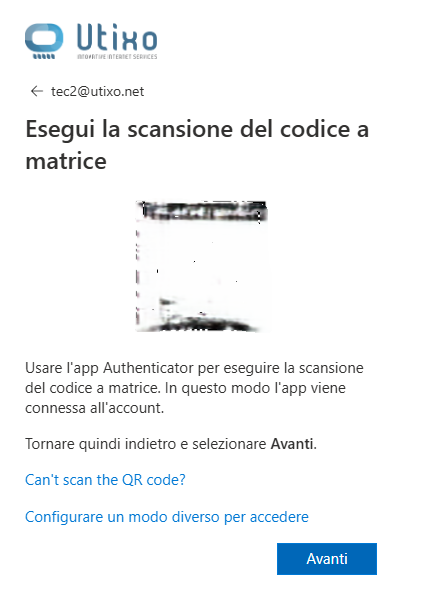
On the next screen, click Next to display the QR code used to link your account to the authenticator app.
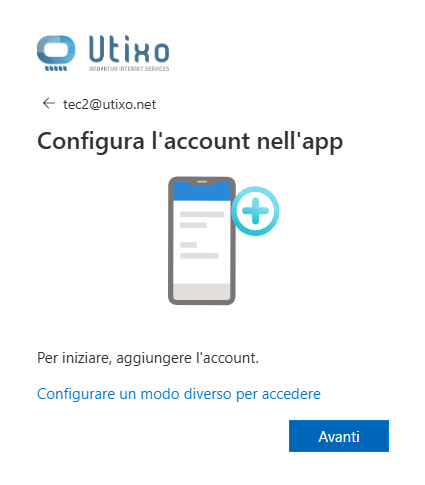
6. Scan the QR code using your smartphone
Open the Microsoft Authenticator app and choose to add a new account by scanning a QR code. Use your phone's camera to scan the QR code shown on screen.
Once scanned, a temporary authentication code will automatically appear in the app.
7. Finalize the setup
Back in your browser, click Next and enter the temporary code displayed in the Microsoft Authenticator app to complete the 2FA setup for your Microsoft 365 account.