
Managing Microsoft 365 Licenses via UCMP (Utixo Control Panel)
The management of Microsoft 365 licenses must be performed exclusively through the Utixo Control Panel (UCMP), and not directly from the Microsoft portal. This is because all upgrade or downgrade operations must be processed via the Utixo platform to ensure consistency and accurate data alignment.
Warning: potential discrepancies in license count
It is entirely normal for the Microsoft portal to show a different number of licenses compared to what is displayed in UCMP. For administrative and billing purposes, the data in the Utixo system is always the official reference.
How to change the number of licenses
- Log into your UCMP control panel.
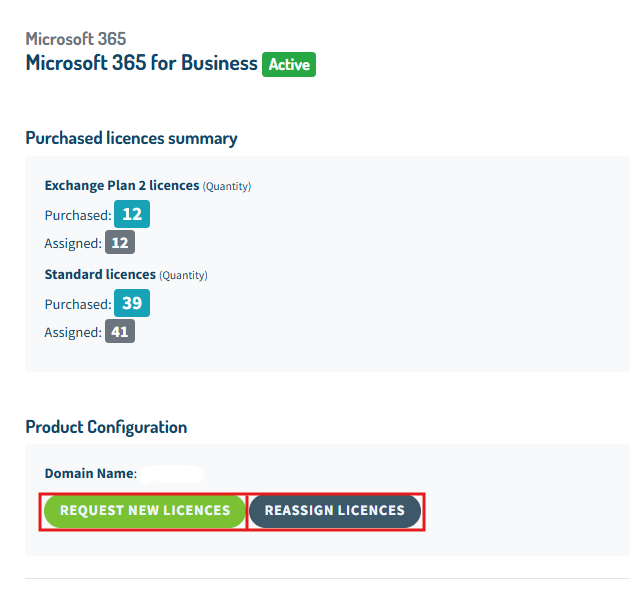
- Select the Microsoft 365 for Business product by clicking on Active.

- In the following screen, you will see the current status of your active licenses. To modify the quantity, click on Request new licenses.
- If you wish to reassign existing licenses, click on Reassign Licences and follow this license reassignment guide.
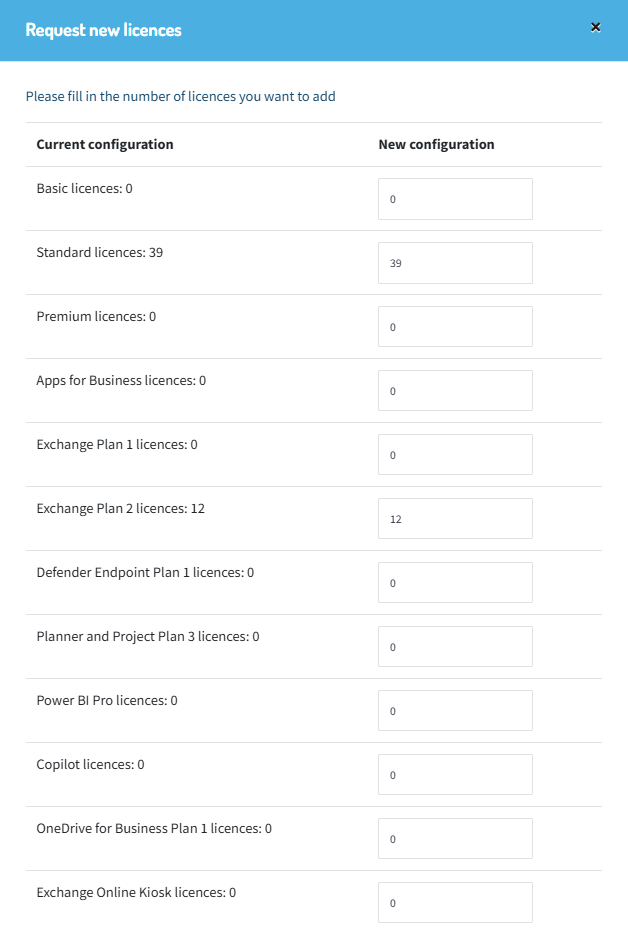
- You can then request new licenses or remove them, depending on your company’s needs.
Important notes about license changes
When a new license order is submitted, a proforma invoice is automatically generated and must be paid promptly.
You can pay using a credit card (immediate activation) or via bank transfer (activation in 1–2 business days).
The invoice is calculated on a pro-rata basis, meaning it reflects the remaining time until the expiration of your existing licenses. This ensures a single unified renewal date for simplified license management.
Once the invoice is paid, the licenses will become available within 1–2 hours. They can then be assigned via the admin.microsoft.com portal. If you have the managed Microsoft 365 service, the Utixo technical team will handle the assignment for you.